To read comments about this application and/or leave a comment, go to:
Read and/or Write Comments.
To install the application click on the following links from you Android device:
[Free Version]
[Pro Version]
Purpose of the Sensor2File application
The Sensor2File application allows you to record the output of a wide variety of sensors available on your Android device.
You can use the recorded data for any kind of scientific/engineering projects and hobbies.
This application allows you to look at the sensors output, which can be very helpful with your own Android application development,
to satisfy your curiosity, etc.
This application allows to record the sensors output simultaneously, so one can relate one type of reading to another,
for example to see how compass/magnetometer changing of direction is related to the rotation speed from the gyroscope.
Features
- Simultaneously records wide variety of Android Hardware Sensors.
- Writes the Sensors output into a File.
- Each line of recording contains a time-stamp followed by the list of sensors output values.
- The Sensor2File Pro version allows to change sensors recording parameters.
How to use the application
The application has the following screen/views
- Record Control
- Settings
- Help: short version of this help document.
The "Record Control" and "Help" screens have a menu tool-bar on top of the screen:

 - press to access the settings screen
 - press to access the help screen
The description and operation of each screen/view mode is given below in the following sections of this manual.
Record Control
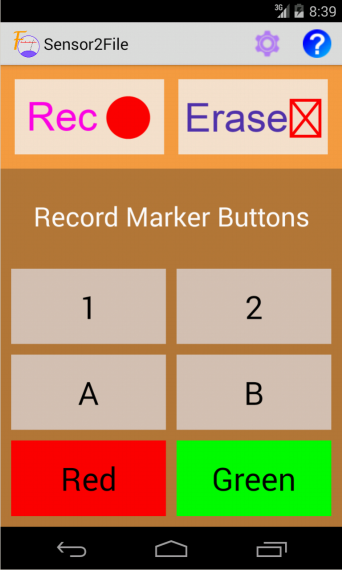
Or in the landscape orientation:
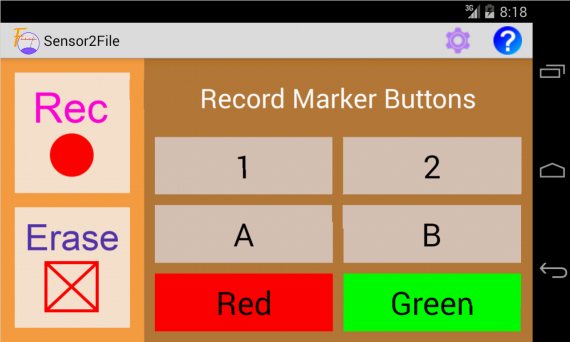
The top two buttons in portrait orientation or left two buttons in landscape orientation are "Recording Start/Stop" and "Erase":
 - press to start/stop the recording
 - press to erase the data from file
Pressing the Start/Stop button will start the recording of the sensors output into a file.
The button will begin to blink indicating that the record is in progress.
If you press on the Start/Stop button while it's blinking it will stop the recording.
If you don't stop the recording manually it will be stopped at the expiration of recording timer.
To change the recording timer, file name, and frequency of recording refer to the settings section.
Pressing the Erase button while the application is not recording will pop-up a dialog:
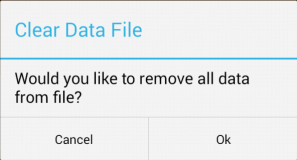
Press Ok to erase the sensors data from the recording file (except for the header), or press Cancel otherwise.
The file name can be selected via settings.
Pressing the Erase button while the application is recording will pop-up a dialog:
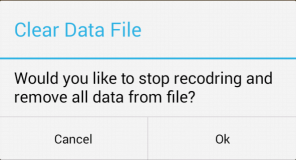
Press Ok to stop the recording and erase the sensors data from the recording file (except for the header),
or press Cancel to keep recording without erasing any data.
You can insert a marker in the recording to mark a certain event so that you can conveniently identify (search for it) within the recording.
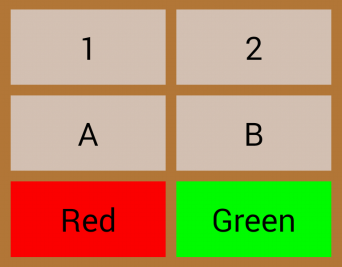 ⇚ To insert a marker press one of the buttons depicted on the picture. Then the following line will be added to the recorded file:
date-time-label Marker_XXX
where the XXX stands for the button text, e.g. 1, 2, A, B, Red, and Green.
Settings
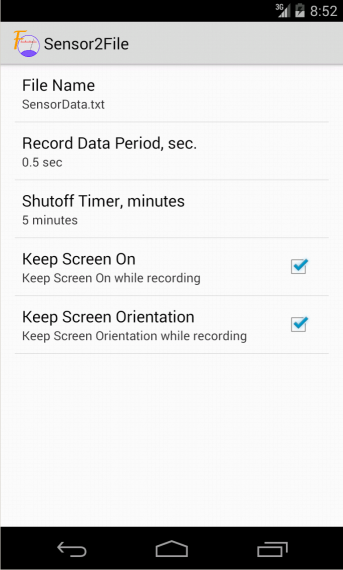
- File Name: name of the file to store recorded data in the /Sensor2FileRecData/ folder of an external storage of the Android device.
The only allowed characters in the file name are alpha-numeric, dash-, underscore_, and dot.
The file name must begin with a letter or number.
The maximum number of characters allowed in the file name is 32.
- Record Data Period: the period in seconds between recording of sensors measurements.
The actual measurement period can be slightly longer due to lag in system performance -
the faster the system processor the closer the actual measurements timing to the set period.
- Shutoff Timer: the amount of time (minutes) since the start of recording after which the recording will be stopped unless it is stopped manually.
- Keep Screen On: if checked, then that option will prevent the Android screen from turning off automatically.
- Keep Screen Orientation: if checked, than that option will prevent the Android screen to change the orientation depending on its position.
The first three options can be changed only in the "Pro" version of this application,
while in the "Free" version they are read-only having the following default values:
- File Name: SensorData.txt
- Record Data Period: 0.5 seconds
- Shutoff Timer: 5 minutes
Recording File Format and related details
- The file begins with a line displaying a header, then the lines (rows) of sensor measurements data following.
Each data row begins with the time-stamp when the sensors measurement was taken,
following by the measurements from the sensors available on your Android device and supported by this application.
- If the sensor is not available then N/A will be written instead of the numerical value.
- Note, if you turn the screen off, say by pressing a power button, then on many types of Android devices it'll force the sensors to turn off as well.
- The GPS may take a while to acquire enough satellite data to provide readings,
therefore when GPS is available but before it is fully initialized, the recording will show "Waiting" instead of numerical value.
- If the period between the sensor measurements is long then the sensor readings will be averaged during that period.
- Note that the magnetic sensor (compass) needs to be periodically calibrated, so if you suspect that the magnetic sensor output is unreasonable then calibrate the compass.
- Also note that many Android devices have a very imprecise illuminance sensor. Unless you know the precision specification of you device then interpret the numerical value as more or less light rather than lux.
Here is the list of sensors in the order they appear in the line of recorded data:
| Sensor | Measurement |
|---|
| Accelerometer | Total Acceleration vector (X,Y,Z), including gravity, measured in m/sec2 |
| Compass (Magnetometer) | Magnetic Field vector (X,Y,Z) measured in µTesla |
| Gyroscope (Rotation Sensor) | Rotation Velocity vector (X,Y,Z) measured in rad/sec |
| GPS Location | (Horizontal Accuracy meters, Latitude degree, Longitude degree) ⊕ Altitude in meters above Mean Sea Level |
| Photometer (Light Sensor) | Illuminance measured in lux. |
| Barometer | Atmospheric pressure measured in milli Bar |
| Thermometer | Temperature measured in degrees Celsius |
The (X,Y,Z) coordinate system is standard for Android devices and defined the following way:
- Z is looking up from the screen of the device.
- Y is in the plane of the screen and going from the bottom to the top when the device in its default orientation.
- X is in the plane of the screen and going from the left to the right when the device in its default orientation.
Accessing the Data File
The location of the recorded file is on the external storage of the device -
the one you can see when connecting the Android device to your Computer via USB (it is not necessarily removable SD card).
When you connect your Android as USB drive to a computer, then you can transfer/read that recorded file on the computer.
The directory name where the recorded files are located is: Sensor2FileRecData
Note: if you cannot see the Sensor2FileRecData directory, then you can try to restart the Android device.
This likely to resolve the problem because some Android operational systems will not rescan for newly created files/folders.
You'll need to do it only once, afterwards the folder will remain visible.