Draw a curve as close to a given objective curve as you can.
The curve is drawn by moving your Android device/phone through the air as if it leaves a trace of a curve in the air.
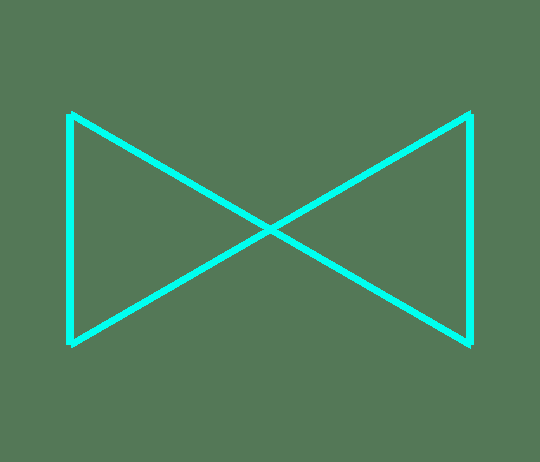
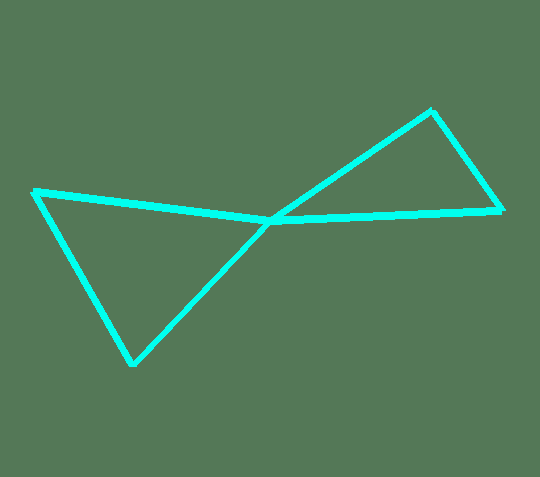
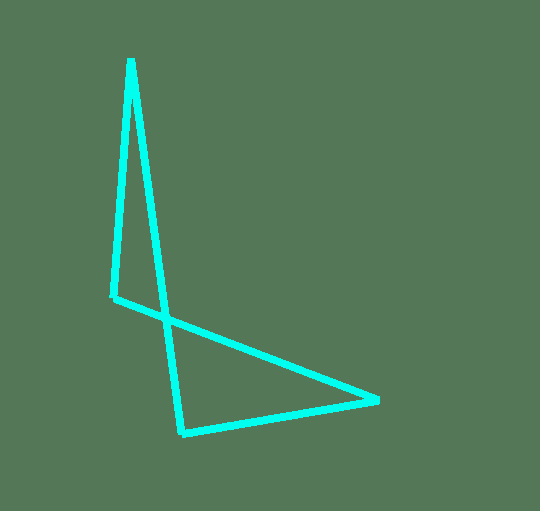
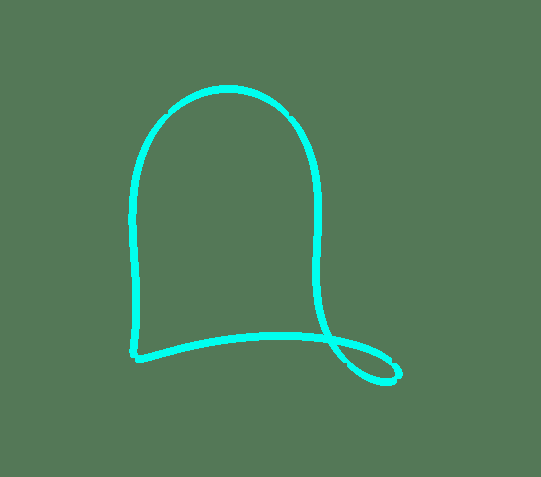
The game has several objective curves: circle, square, joined triangles, and other more complex truly 3D curves/figures.
For example if you choose a circle as an objective curve, then move the phone as close to a circle as you can.
More specifically: Touch an orange area on the screen to indicate that you are starting to draw the figure right before moving the phone.
While keep pressing the button, move the phone to draw the figure. Then at the end of drawing release the button to indicate you finished the drawing.
The end-point of the drawing should be the same as the start-point.
To make the game challenging you have only a few seconds to perform the drawing.
When you finished the drawing, then the path you moved your phone would be displayed along the objective.
In the given example it is a perfect circle and your drawn curve fitted to it as close as possible.
You can rotate the displayed curves by touching/swiping the screen to better visualize their 3D geometry.
The score reflecting how close your path to the objective will be displayed as well.
The curve you draw in the air is calculated based on the dead-reckoning from the device/phone sensors input.
More details
The game has two Toolbar-menus and several screens:
Curve Drawing (home screen)
Display Curve and Score
Choose Objective
Achievements
Leaderboard
Settings
Help
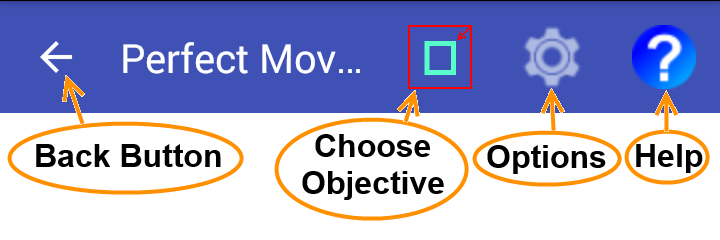
Top Menu Toolbar
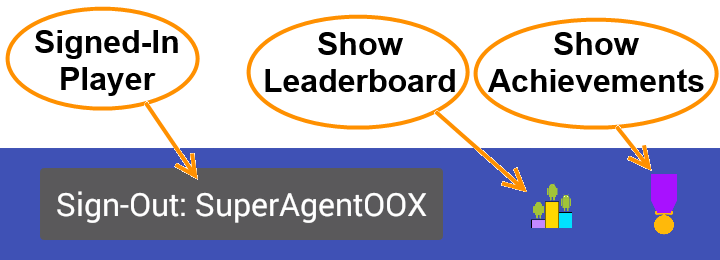
Bottom Menu Toolbar
Curve Drawing screen (home screen)
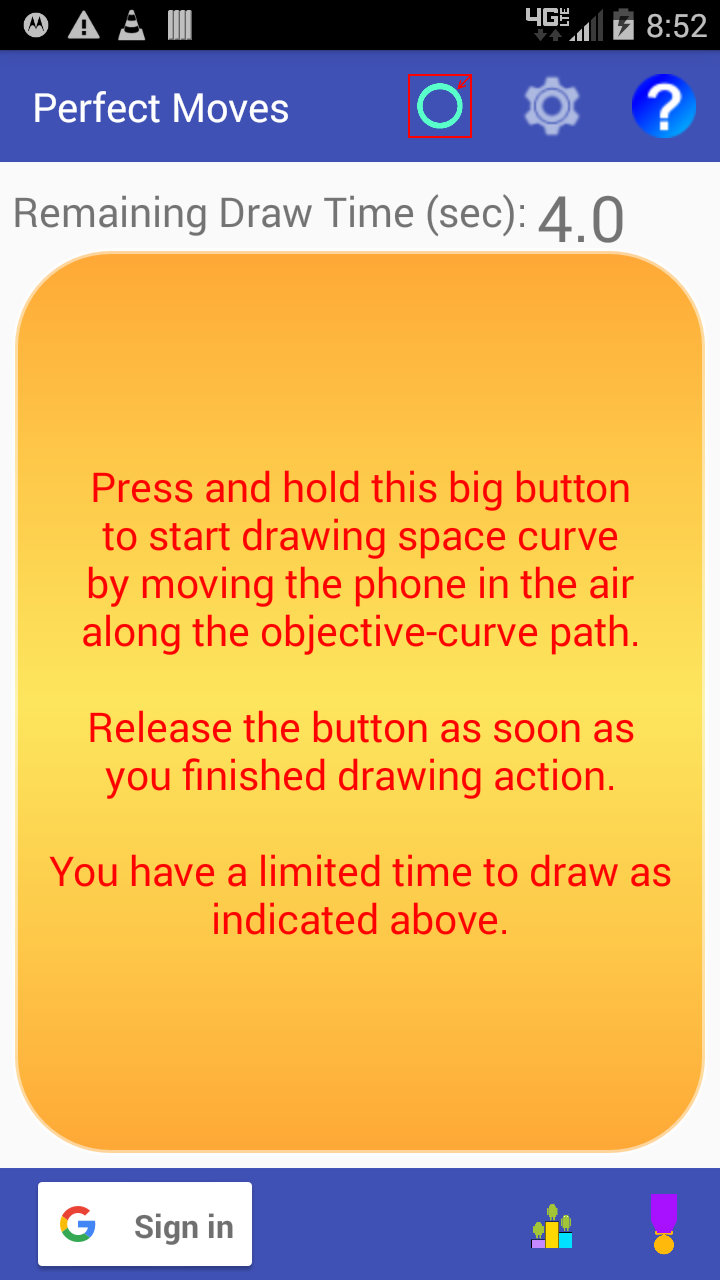
Touch the orange area in the center of the screen to indicate that you are starting to move your phone to draw the figure/curve.
The orange area will visually shake while you are pressing it, and the phone will play a sound-effect (can be disabled in the application options).
Move the phone through the air as if you are drawing the desired curve/figure in space.
At the end of your move release the orange area to indicate you have finished drawing.
The counter near the top of the screen shows the remaining time to draw while you are drawing (moving the phone while pressing the button).
If you didn't finish the drawing at the deadline then the sound/vibration will alert that you need to be faster while the drawing is discarded.
The figure/curve you drew should be sufficiently big (at least about a foot in diameter) to be counted as valid for scoring, otherwise you’ll get a warning that the drawing is too small.
When the drawing is accepted, after a short processing delay the game will switch to the screen which shows the curve you drew together with the objective-curve and the drawing perfection score.
Here is a short video demonstration:
Display Curve and Score screen
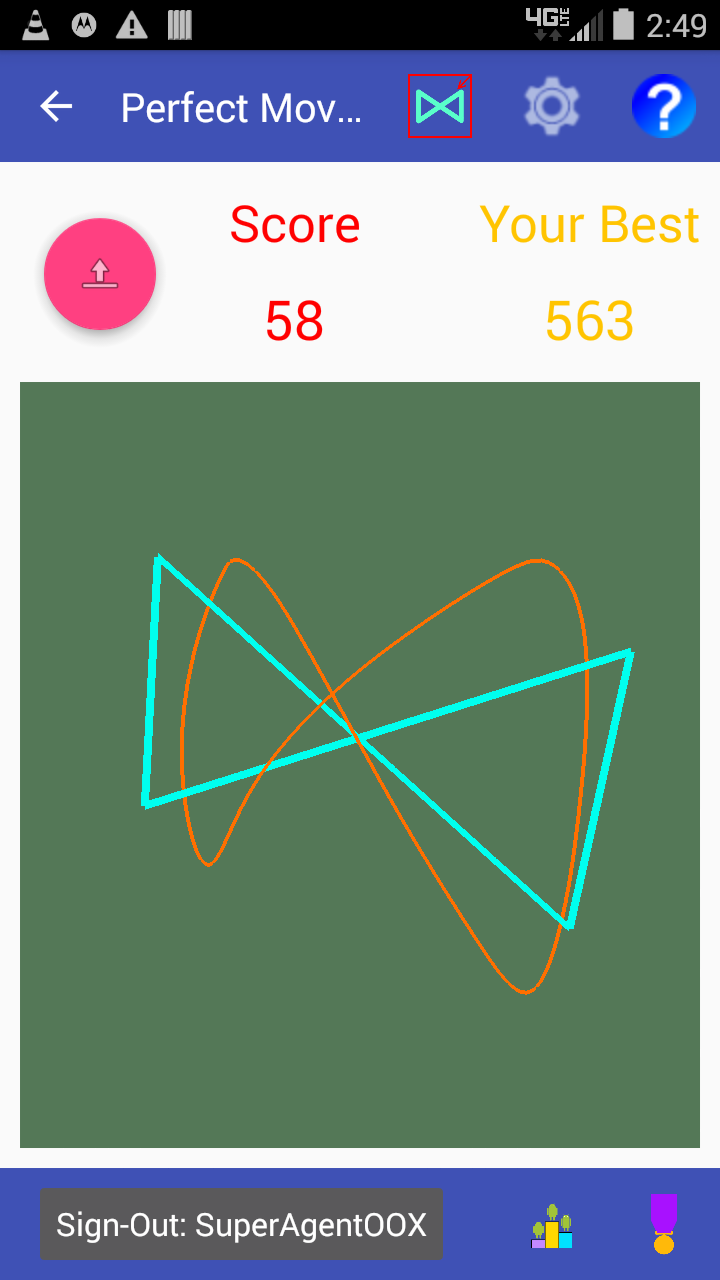
This screen shows the curve you drew (orange) superimposed on the objective curve (cyan).
The score is shown at the top of the screen.
If you logged-in as a Google Play game player, then also your best score is shown in the top right corner of the screen.
Pressing the round button in the top left corner allows you to upload/post the score to a leaderboard corresponding to a given objective.
If you already logged-in then the score posting is performed automatically if you choose to do so in the game settings.
You can go back to the drawing screen by pressing either main back button or top-toolbar back button.
You can rotate the curves by drugging a finger across the screen in the direction of rotation.
This allows you to better visualize the 3D shape of your drawing.
Here is a short video demonstration:
Choose Objective screen
This screen allows you to choose drawing objective curve.
Press left/right scrolling buttons to flip between the objectives, then when you find the one you like press either main back button or top-toolbar back button to go to the previous screen.
You can rotate the objective curve by dragging a finger across the screen in the direction of rotation (the same way you do on the curve display screen) to visualize the 3D geometry.
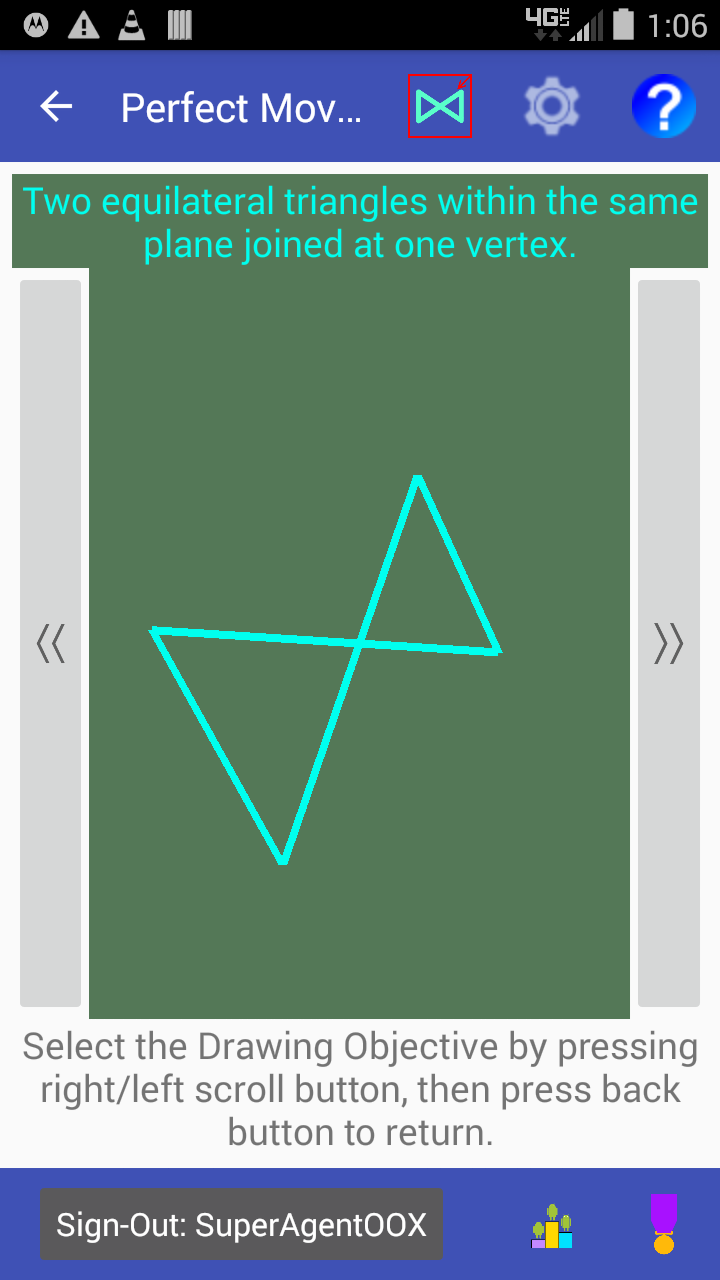
The current version of the game has 6 objectives: 3 of them free, and 3 premium - available for in-app purchase:
Drawing Objective
Description
Included for free
Circle (in a plane).
Square (in a plane).
Triangles Joined at vertex (in a plane).
Triangles Joined at vertex rotated 90 degrees one relative to another.
Square bent 90 degrees along its diagonal.
Circle placed on a cylinder of half circle's radius.
Buying the premium objective curves is a simple process securely handled by Google Play, so your personal information (including credit card, etc.) will not be accessed by this application - the entire transaction is performed by the Google Play.
Note that In-app purchases are related to your Google Play Store Login-ID which may be different from your Google Play Games Player-ID. From this perspective you don't have to be logged-in with a Player-ID to purchase and use premium objective curves.
Achievements screen
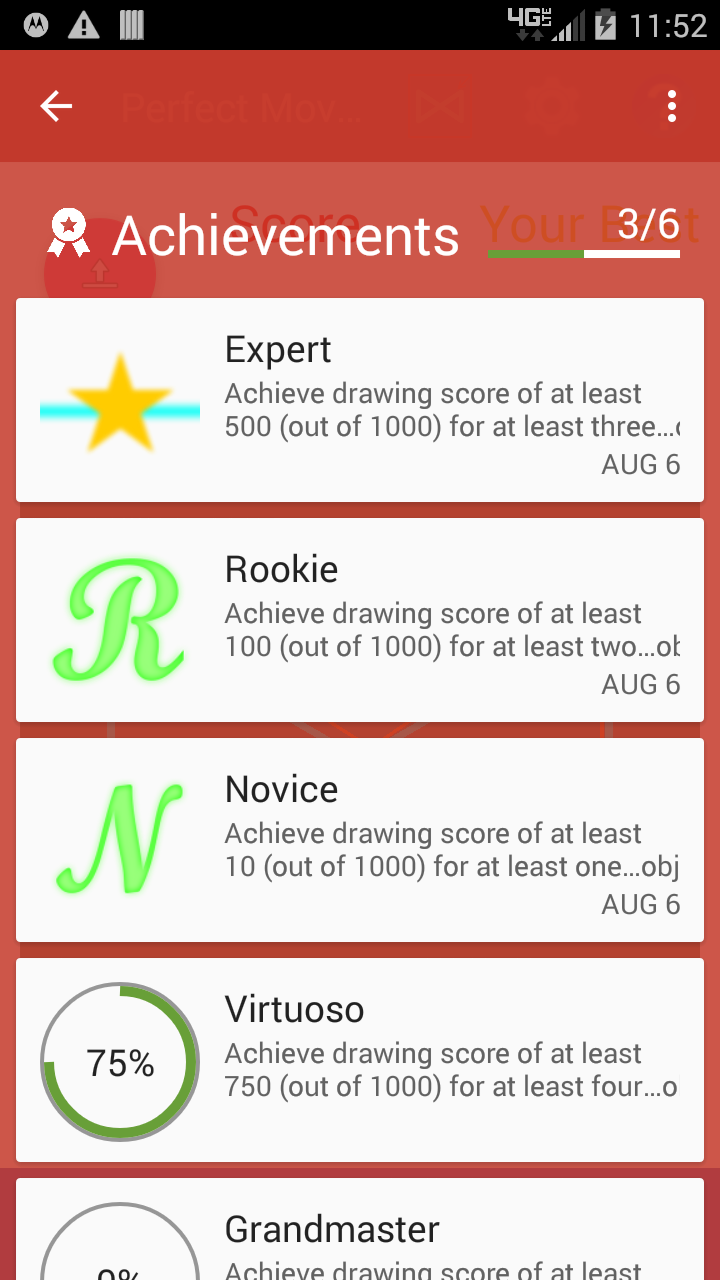
The Achievements screen shows a list of your achievements in this game.
Press back button to return to the game.
You need to be logged-in into Google Play Game to use this feature.
Leaderboard screen
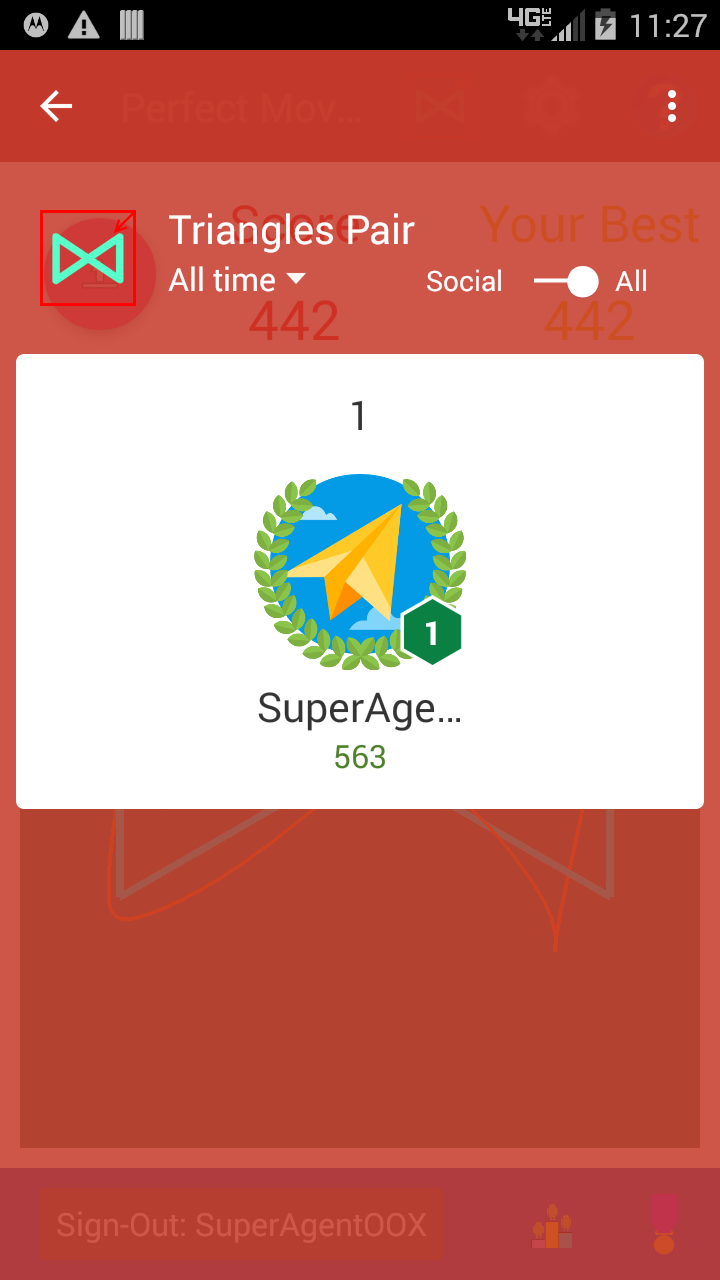
The Leaderboard screen shows the top score players of this game as well as your best score.
Setting the "Social ↔ All" slider to "All" will help to make sure that your score will show up.
Press back button to return to the game.
You need to be logged-in into Google Play Game to use this feature.
Player Sign-in and Sign-out
You don't need to be signed-in to play this game.
However being signed-in with your Google Play Games Player-ID provides several advantages:
Earn Achievement Levels
Share you top scores with other players around the world
Initially (after you install the game) you will see sign-in button in the bottom toolbar:
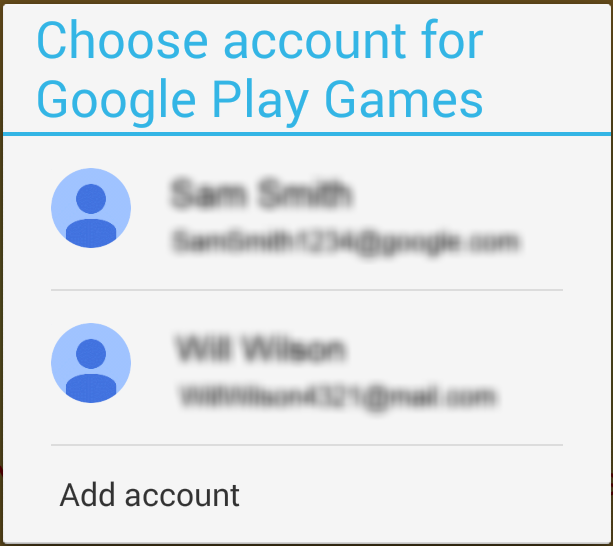
Touch it to bring the Google Play Games Sign-in dialog (account chooser):
Touch the existing name in the account chooser (if you have existing accounts you used in other games), or touch "Add account" to sign-in with your existing (but not listed) account or create a new account.
Once the sign-in is successful, then the bottom toolbar will show sign-out button followed by the player name you've chosen for your Google Play Games account:
You can sign-out from the Google Play Games by touching that sign-out button.
Note that Google Play Games Sign-In Player-ID does not have to be the same you use to do in-app purchases. In-app purchases are related to your Google Play Store Login-ID.